Connect your battery and devices
Every battery Battery Coach supports, and the smart devices it can read. Each connection is read-only: Battery Coach never changes your battery's settings or switches anything.
Batteries
FoxESS
Connects directly with an API key you create in FoxESS Cloud. Read-only.
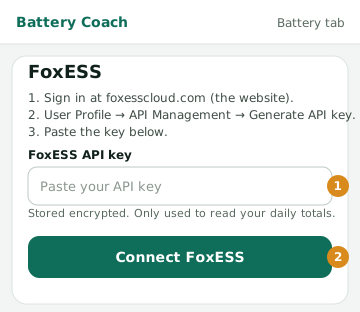
- On a computer, sign in at foxesscloud.com (the website, not the phone app).
- Open User Profile → API Management and choose Generate API key.
- In Battery Coach, open your home → Battery, paste the key into FoxESS API key (1) and press Connect FoxESS (2).
- If you have more than one inverter, choose the one your battery is on, then connect.
- To stop access at any time, delete the key in FoxESS Cloud.
On FoxESS's own site: FoxESS Cloud (sign in) ↗ · FoxESS Cloud API documentation ↗
Sungrow
Connects through Sungrow's iSolarCloud sign-in. You approve read-only access; we never see your password.
- In Battery Coach, open your home → Battery and press Connect with iSolarCloud (1).
- Sign in on Sungrow's iSolarCloud page with your usual iSolarCloud email and password.
- Approve read access. You come back to Battery Coach, connected.
- To stop access, press Disconnect on the Battery tab.
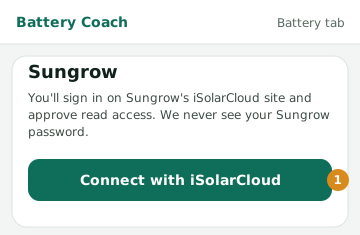
If the Connect button isn't shown yet, Sungrow's connection is still being switched on: upload your figures instead (see Any other battery).
On Sungrow's own site: iSolarCloud (Sungrow's monitoring) ↗
GoodWe
Connects through the SEMS portal: you add Battery Coach as a read-only visitor to your plant.
- In the SEMS app or at semsportal.com, open your plant and add a visitor using the email address shown on your Battery tab. A visitor can only view.
- Copy your Plant ID from the SEMS portal address in your browser (the long code after /PowerStatusSnMin/).
- In Battery Coach, open your home → Battery, paste it into SEMS Plant ID (1) and press Connect GoodWe (2).
- To stop access, remove the visitor in SEMS.
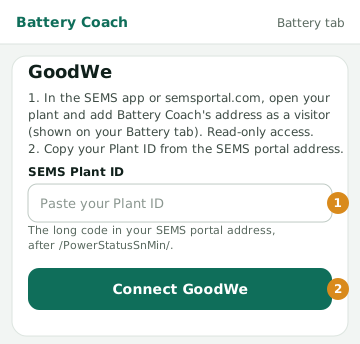
If the GoodWe form isn't shown yet, GoodWe's connection is still being switched on: upload your figures instead.
On GoodWe's own site: SEMS portal (sign in) ↗ · GoodWe SEMS+ app user manual (PDF) ↗
Tesla Powerwall
Connects through Tesla's own sign-in. You approve read access to energy data; we never see your password.
- In Battery Coach, open your home → Battery and press Connect with Tesla (1).
- Sign in on Tesla's page with your Tesla account and approve access to your energy data.
- You come back to Battery Coach, connected.
- To stop access, press Disconnect on the Battery tab. You can also remove its access in your Tesla account settings.
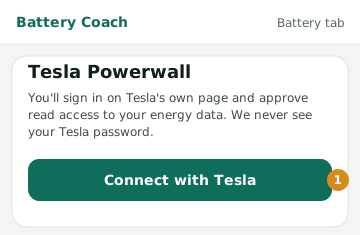
If the Connect button isn't shown yet, Tesla's connection is still being switched on: upload your figures instead.
On Tesla Powerwall's own site: Tesla Powerwall help (Australia) ↗
Sigenergy (SigenStor)
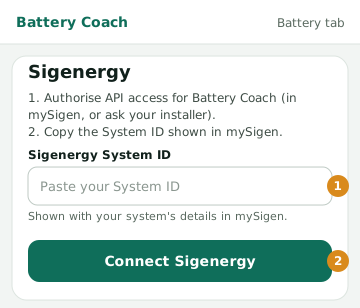
Connects through Sigenergy's cloud: you authorise Battery Coach for your system in mySigen and give us the System ID. Read-only; we never see your password.
- Authorise API access for Battery Coach on your system: in the mySigen app if it offers it, otherwise ask your installer or Sigenergy support to switch it on.
- Copy your System ID: it's shown with your system's details in the mySigen app and the Sigenergy web portal.
- In Battery Coach, open your home → Battery, paste it into Sigenergy System ID (1) and press Connect Sigenergy (2).
- Sigenergy allows one update every 5 minutes, so live figures refresh every half hour and daily totals overnight.
- To stop access, press Disconnect on the Battery tab, and remove Battery Coach's authorisation in mySigen.
If the Sigenergy form isn't shown yet, Sigenergy's connection is still being switched on: upload your figures from mySigen instead (see Any other battery).
On Sigenergy's own site: Sigenergy ↗
AlphaESS
Connects through AlphaESS's Open API with the serial number and Check Code on your inverter, confirmed by a code AlphaESS emails you. Read-only; no password needed.
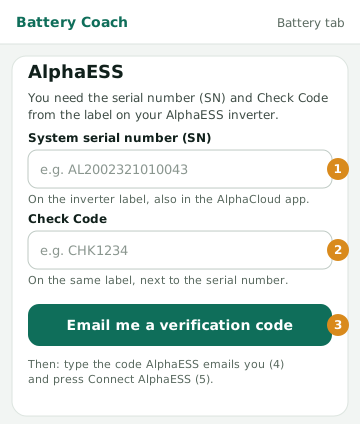
- Find the label on the side of your AlphaESS inverter. Note the serial number (SN) and the Check Code.
- In Battery Coach, open your home → Battery → AlphaESS. Type the serial number (1) and Check Code (2), and press Email me a verification code (3).
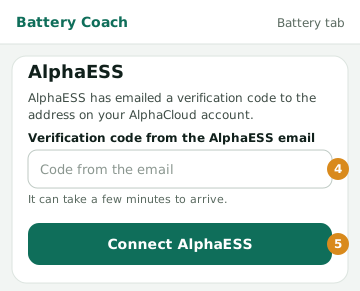
- Check the email address on your AlphaCloud account for a code from AlphaESS. It can take a few minutes.
- Type the code (4) and press Connect AlphaESS (5).
- To stop access, press Disconnect on the Battery tab: Battery Coach releases your system from its AlphaESS access at the same time.
Can't find the label? The serial number is also in the AlphaCloud app under System. The Check Code is only on the label: your installer can read it for you.
On AlphaESS's own site: AlphaCloud (sign in) ↗ · AlphaESS Open API ↗
BYD Battery-Box (HVS, HVM)
BYD batteries don't have a cloud of their own: Battery Coach reads them through the inverter they're paired with, and keeps the battery listed as BYD.
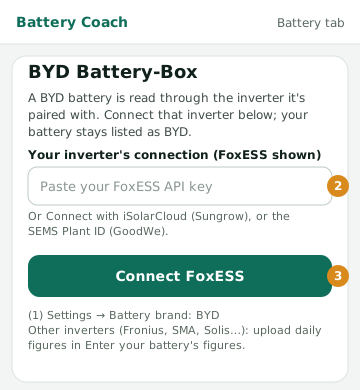
- In Battery Coach, open your home → Settings and set Battery brand to BYD (1). Save.
- Find your inverter's brand: it's on the inverter's own label or in your installer's paperwork.
- FoxESS, Sungrow or GoodWe inverter: on the Battery tab, connect that inverter (2) as shown in its own guide above, and press Connect (3).
- Any other inverter (Fronius, SMA, Solis and others): export daily figures from the inverter's app and upload them (see Any other battery).
- BYD's Be Connect app is for installers setting up the battery over its own Wi-Fi; you don't need it for Battery Coach.
On BYD Battery-Box's own site: BYD Battery-Box (downloads and manuals) ↗
Any other battery
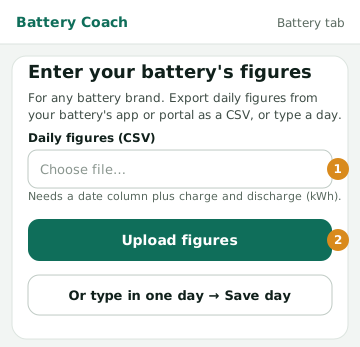
For every other brand (LG, Redback, sonnen, SolarEdge, Enphase and others), or before a connection is switched on: upload daily figures from your battery's app or portal.
- In your battery's app or web portal, export daily figures as a CSV file: the date, energy charged and energy discharged (kWh).
- In Battery Coach, open your home → Battery → Enter your battery's figures, choose the file (1) and press Upload figures (2).
- No file? Type in one day's charge and discharge and press Save day.
- Upload again whenever you like; days already saved are updated, not doubled.
Smart devices
Optional. Linking plugs and chargers that measure power lets Battery Coach use real readings when it plans the best times for your appliances.
Shelly plugs and meters
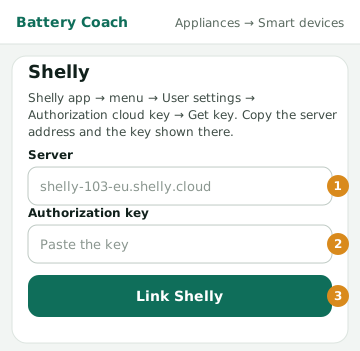
Links with your Shelly Cloud key, to read each device's power use. Battery Coach never switches them.
- In the Shelly app: menu → User settings → Authorization cloud key → Get key.
- Copy the server address and the key shown there.
- In Battery Coach, open your home → Appliances → Smart devices → Shelly. Paste the server (1) and key (2), and press Link Shelly (3).
- Missing devices? Add their Device IDs (Shelly app → the device → Settings → Device information).
On Shelly plugs and meters's own site: Shelly Cloud (web app) ↗ · Shelly Cloud API: the authorization key ↗
Home Assistant (EV chargers, smart plugs, appliances)
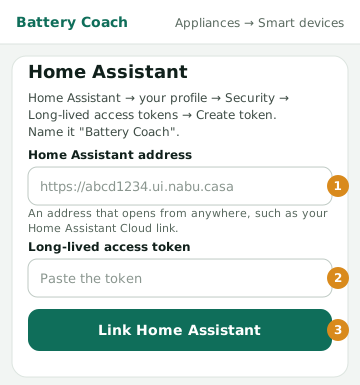
Links with a Home Assistant token, to read switches and power sensors. Battery Coach never switches anything.
- In Home Assistant: your profile → Security → Long-lived access tokens → Create token. Name it Battery Coach and copy it.
- Find an address that opens from anywhere, such as your Home Assistant Cloud remote link (Settings → Home Assistant Cloud → Remote control).
- In Battery Coach, open your home → Appliances → Smart devices → Home Assistant. Paste the address (1) and token (2), and press Link Home Assistant (3).
- To stop access, delete the token in Home Assistant.
On Home Assistant's own site: Home Assistant: access tokens ↗ · Home Assistant Cloud (remote access) ↗
Links to other companies' sites open in a new tab. Their apps and menus change from time to time; if a step doesn't match, ask us.